
Back to your game.
We’re here to help.
Clear fixes. Helpful guides. Support from the people who built your PC.
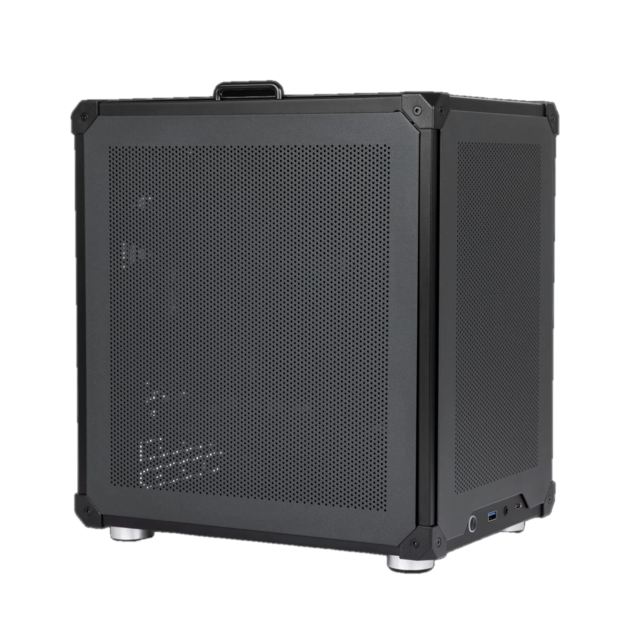
Start with what you see
Troubleshooting for Windows 11. For SteamOS help, contact Raster.
A little help goes
a long way.
Still need a hand? Talk directly with Raster about troubleshooting and next steps.
Contact Raster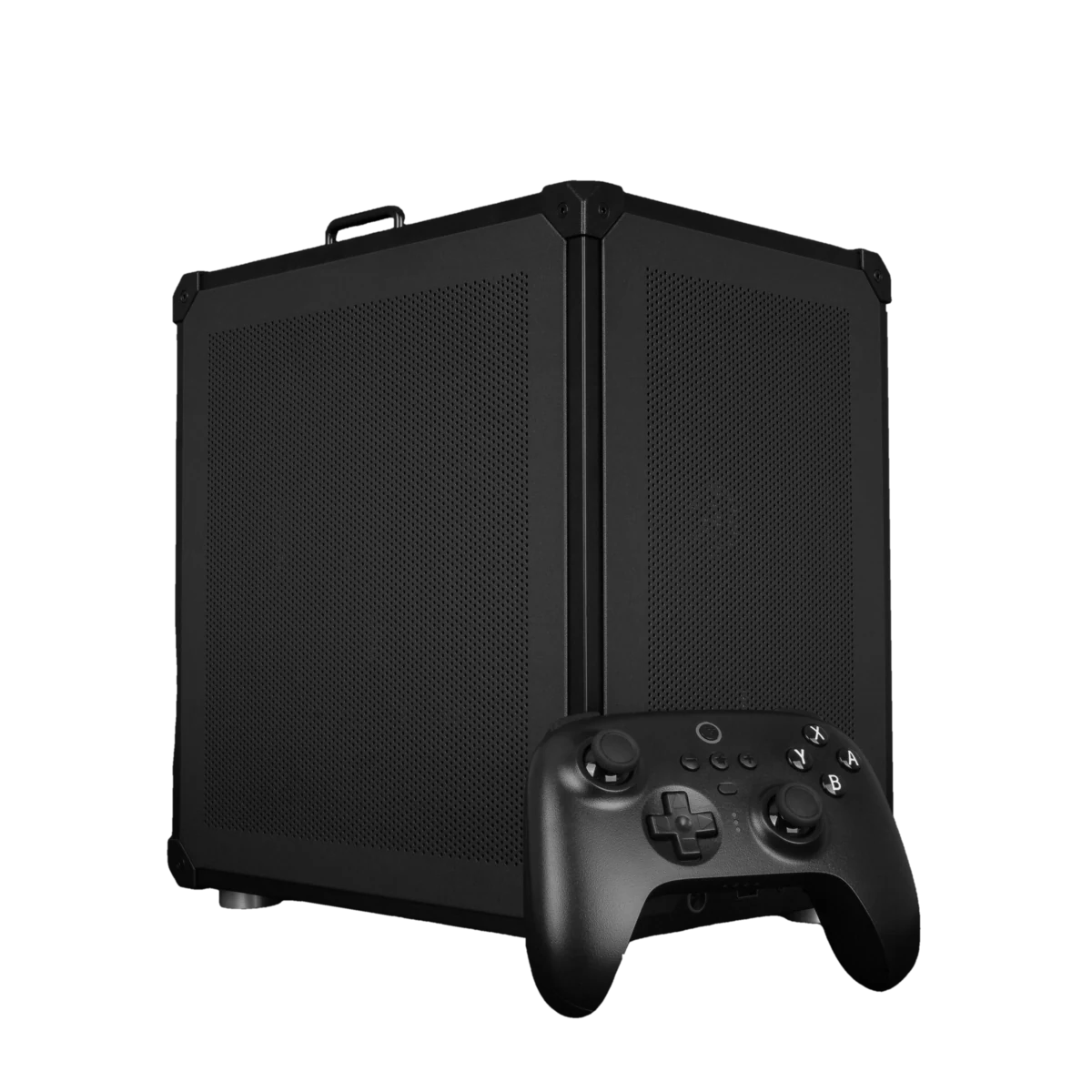
Frequently asked questions
Why can the website price differ from marketplaces?
Marketplace prices include platform fees and may also reflect a different configuration, shipping, and tax. The direct price can be lower for some orders, while the final total depends on the configuration, shipping, and tax shown at checkout.
Where should I start?
Choose the guide that matches what you see. Try one step, then test again. If only one game fails, start with that game; if the whole PC restarts, start with Unexpected restarts. Windows recovery options.
Should I reset Windows?
Contact Raster first. A reset can remove apps or files, depending on the option selected, and may make the original issue harder to investigate. Back up important files before any recovery operation.
What should I send to support?
Include your order number, game or app name, the time of the issue, a screenshot of the error, and what you already tried. Crop out passwords, payment details, or unrelated personal information.
How do I send diagnostic logs?
Contact Raster and we’ll help you collect the right report. If Raster has provided the Windows app for your PC, open it and use its issue-reporting flow. Review what it collects before sending, then keep the case ID.
When should I stop troubleshooting?
Stop and contact Raster if the PC repeatedly shuts down, will not start, or shows a damaged cable or a burning smell. Do not open the power supply. We’ll help with the next step.